SLI home
User login

A BLOG FOR E-COMMERCE LEADERS

  • Blog
  • Resources
  • Webinars
  • Customer Experience Scorecard

SLI Blog

Happy Customers Hover Over Search Results

Posted by Terry CostaApril 13, 2012eCommerce

One tip usability experts give for improving the shopping experience online is to include product information in the search results that will speed up identification and selection. Well, following the old adage that “A picture is worth a thousand words” we should be taking a good look at our product images.

Some products can be shown at a reduced size in search and still look fantastic.  However, there are plenty of times when we end up with a product image that simply doesn’t display well in our site search results.  This could be due to an poor image from the manufacturer or it could simply the nature of the product.  In this example below from Wooden Toddler Toys, we see a number of product images of block toys that contain many parts that are difficult to see. One image even includes some text that is almost impossible to read.
woodentoys-blocks
At this point, if the customer wants to get a better look, they would typically have to click through to the product page. However, thanks to having a hover-over capability, Wooden Toddler Toys customers can simply hold their mouse pointer over these images to display a larger version and get a better feel for the product.
woodentoys-blocks-hover

In another example from ACandyStore.com, the first product you see in a search for chocolate includes an image of a product that contains multiple pieces that make it difficult to see exactly what you are getting.

acandystore-chocolate

Thanks to their hover-over capability, ACandyStore.com is able to show a larger product image along with a full description. This gives them the ability to see the product much better and learn more about it.

acandystore-chocolate-hover

At this point, many customers would be ready to buy.  Fortunately, this hover window includes the capability for customers to select the type of chocolate, choose a quantity, and add the item into their shopping basket.  As you can see, a simple mouse-over hover window can do wonders for speeding up the identification and selection of products.

In addition to giving customers a closer look at your products, hover over windows can be a great way to display other important information that will help your customers make a buying decision.   If you have other important information about your products that you don’t want to display up front in your site search results for design reasons or lack of space, consider placing this information in a hover-over window.

Do you have a story about how a hover-over window improved your shopping experience or thoughts about the product information you would like to see in a hover-over window? If so, please let us know by posting a comment.

Read More

Is your site search speedy enough?

Posted by Shaun RyanApril 10, 2012Ajax, Mobile, Newsletter, Site Search

In light of all the transformations we’re seeing on the web, one aspect must be kept top of mind: speed. Consumers’ expectations for pages to load quickly – whether on traditional or mobile sites – are increasing all the time. If your site performs too slowly, you risk losing visitors to your competitors, possibly for good. Also, Google takes page load time into account as part of their ranking algorithm, so a slower loading page can undermine your SEO efforts.

There is an abundance of research that shows the impact – both good and bad – that speed has on e-commerce sites. Gomez.com issued some startling statistics not long ago, such as:

  • The average online shopper expects web pages to load in two seconds or less, down from four seconds in 2006; after three seconds, up to 40% will abandon a site — Forrester Research
  • 78% of consumers surveyed went to a competitor’s site due to poor performance at peak times — Compuware and Equation Research
  • 71% of mobile web users expect websites to load as quickly, almost as quickly or faster on their mobile phone compared to the computer they use at home — up from 58% in 2009 — Compuware and Equation Research
  • Conversion rate increases 74% when page load time decreases from 8 to 2 seconds — Gomez real user monitoring data (33 major retailers, 3 million page views, search transaction)

The need for speed applies to all pages of your site, including site search and navigation – and luckily, there are a few things you can do to make your search operate faster and more efficiently, adding to a satisfying online experience. Some initial steps you can take are outlined below.

1. Optimize your indexing for faster search

A modern search index should be able to return relevant results in a fraction of a second. Some sites make the mistake of querying directly into their product database which is not optimized for speed, or relevance. This can slow down the process significantly.

2. Utilize Ajax search

Ajax search speeds up search queries by removing the need for a page-refresh each time a user conducts a follow-on query, selects a refinement, switches between grid and list views, reorders the results or clicks to the next page. In any of these instances, only the data that is needed is requested from the servers so the results appear much faster. (See our video tutorial on using Ajax search here.)

3. Address mobile sites

On a mobile commerce site, speed is even more important. The mobile site and the mobile search should only have the content and functionality that is absolutely necessary. SLI has developed a set of best practices for delivering mobile search (see our video tutorial here). One way to significantly improve load time of search pages is to use thumbnails instead of full size images.

4. Use content delivery networks

Content delivery networks bring the files (images, JavaScript, etc.) that are being delivered on the page, closer to the end users. This local caching can significantly speed up the delivery of those files, particularly for your visitors that are physically located far way from your servers. SLI uses Akamai for this.

5. Only include what’s necessary on your pages

Is everything on your page necessary? If you can have less on your page it will be quicker to load and the page may be simpler for your visitors to use. Conduct A/B tests to see the impact of removing elements from your page.

6. Compress your HTML

All modern browers support compression – this can be enabled on your webserver and it means the data is delivered considerably more quickly. This is an easy win.

7. Have sufficient hardware and bandwidth

Monitor how you are utilizing your machines (servers, switches, load balancers, etc.) and bandwidth, and have plenty of spare capacity so you can handle peak loads and any outages can be handled by machines that are operational.

If you have any questions about ways to speed up the search on your site, please contact your CSM, or email us at info@sli-systems.com.

Read More

Dynamic Search Refinements Improve Usability

Posted by Kish MaharajApril 6, 2012Site Search, Site Search Tips1 comment

Basic search refinements make it easy for customers to find what they are looking, but dynamic search refinements can supercharge your site search experience and provide a host of other usability benefits. They can help customers find exactly what they are looking for more quickly, make it easier to compare products, and reduce the risk of purchasing the wrong product.

Dynamic search refinements go beyond basic filter criteria such as price or brand. They are comprised of specific product features and specifications. And, they only appear in the product categories where they are relevant. In this example from Wholesale Tool, when a customer begins his search for a drill, he is presented with a relatively small list of refinements including category, origin and price range. Then, as he narrows the selection down to the “Air Tools” category, he is presented with many more refinements that are specific to the available air tools. This includes product specifications like the type of air inlet, average air consumption, RPM, and net weight.

Refinements for “Drill” Refinements After Selecting “Air Tools”
search-refinement-drill-1 search-refinement-drill-2

These search refinements change dynamically based on the product category that is selected. If the customer decides he wants to look at bits for his new drill, the refinements change to include things like size, type, flute length, diameter, and more. And, with over 200 types of drill bits to choose from, you can see how helpful this would be for a customer who was only interested in drill bits that had a flute length of 1-3/4 inches. Selecting that would quickly narrow the list of choices down to just five.

search-refinement-drill-bit

Another helpful feature is that the refinement groups are sticky. Thus, the customer can select one brand of drill bits and then narrow the selection further to a specific size of drill bit from that brand. Using dynamic search refinements also helps you improve usability by minimizing the filter options early in the search and ensuring that they only expand with options that are relevant to the product category of interest.

When your product catalog includes items that have features and specifications that are important buying criteria for your customers, consider implementing dynamic search refinements to improve their site search experience.

Read More

Site Search Product Information Roundup

Posted by stevegApril 3, 2012Site Search3 comments

Deciding what product information to include in your site search results can be tricky.  Should you take the approach of “the more the better” or look at this as “less is more?”  The answer should ultimately be determined by your customers and a determination of what will produce the best results for your business.

From the customer perspective, you need to find out what information they most want to see when conducting a search.  Are your customers using search as a way to browse your catalog of products? Or, are they looking for the best deals, or simply trying to find an exact match to an item that they have the part number for?  The answer could influence your decision to display larger product images, original and discounted pricing, or part numbers.

From a business perspective, you’ll want to include enough product information to keep your customers engaged and feeling confident they will find what they are looking for. But, you also want to move them towards making a purchase decision. If your customers typically purchase when items are on sale, calling attention to discounted items would likely increase your conversion rate.

One of the best ways to begin working through the process of deciding what product information to include in your site search results is to start with a complete list of the types of information that you could include.  To help you get started, I have compiled the following list of a variety of product information that other retailers have included along with some examples of how that information is displayed.

Product Name – The product name is something you will most always find in site search results. It will typically appear below the product image however some retailers have placed it above the image.

Drs Foster and Smith Item Eastwood Item world-soccer-shop-item

Product Image – The product image is always included in the search results but the size of the image can vary greatly from one retailer to the next as you can see below.

7forallmankind-item wooden-toys-item superwarehouse-item

Product Description – A full or partial product description is not shown by many retailers especially when results are displayed in a grid view.  However, when products are displayed in a list view, a product description is more often included.

Grid View

cruiser-grid-view

List View

cruiser-list-view

Product SKU or Part # – A specific part number or item code is not used very often but can be important for those who sell parts or whose products are also sold through print catalogs.

ustoy-item superwarehouse-drive-part david-willimams-item21

Price – The price of the product is almost always included.  When an item is on sale, many retailers will also include the original price with the discounted price.  Some will also include the amount of any savings either in a dollar amount or percentage.

24hourfit cruiser-price american-bridal-item

Stock Status – Some retailers will indicate if the product is in stock while others will only show the stock status when the item is out of stock.  Another option that can help create some urgency to purchase is showing the actual quantity of items in stock.

folica-stock ustoy-out-stock wolfermans-soldout

Star Ratings – Including a graphic representation of the average number of stars a product has received by customers is a relatively common element to include in the site search results.  Some retailers who include this will also add star ratings to a search refinement or sort criteria.

motorcycle-stars jelly-belly-item-ratings bliss-stars

Facebook Likes and Pinterest Pin It – Some retailers have begun to include the Facebook Like button or Pinterest Pin It buttons to enable customers to share more easily. This will usually also include an indication of the number of times the item has been liked or pinned. In the case of likes, this number can then be used as a criteria to sort by.

24hr-like ftd-like artbeads-pin

Promotional Flags – To call more attention to items that are new or on sale, some retailers will display a special graphic overlay on the product image.

motorcycle-sale flower-hat-new artbeads-clearance
Read More

Personalize the Site Search Experience

Posted by Kish MaharajMarch 27, 2012eCommerce, Site Search, Social Media

Lots of online retailers incorporate personalization into different aspects of their websites to give customers a more intimate and familiar shopping experience. Did you know you can also personalize your site search? Some of our customers are doing interesting things in this area that might work well on your site too, as described below.

Search history: A list of the visitor’s recent searches, or a search history, is a nice way to say “welcome back” to customers – it means shoppers don’t need to remember the exact spelling of a product, and can remind them about a previous search. See how FTD.com does this — they show previous search terms when visitors return to the site and click on the search icon next to the search box, listing “Recent Searches” above the refinement options.

Include brand or product preferences: You can allow customers to narrow down the content or product choices they see when they search your site by storing their preferences so that on future visits, they don’t need to reenter them. For example, Cruiser Customizing lets shoppers preselect a make and model for their motorcycle so that site searches only yield items suitable for that particular bike.

Localize site search results: Ask shoppers to enter their address or zip code as they search so they only see results relevant to their location. Tractor Supply asks visitors for their zip codes as soon as they come to the site’s home page, allowing the company to deliver product availability and pricing based on location.

Link with social networks: Consider allowing visitors to use their Facebook profile as their account login, so they can see who in their social networks have “liked” a product or “pinned” it to their Pinterest board, or other activities they’ve engaged in.

Personalize by device: As consumers switch from PCs, tablets, and smartphones, it’s a plus when a website can tailor the experience based on which device they’re using, and perhaps even where they are. You can display merchandising banners on site search or other pages that highlight past activities or purchases on the particular device, and show local content such as store addresses and promotions when visitors  log in to your site from a mobile device. Consider also adding the “Search History” described above to your mobile site, so the visitor can access their past search terms no matter what platform they’re on.

What other ways are you personalizing the shopping experience on your own site?

Read More

Snow+Rock Sheds Light on E-commerce Site Search

Posted by Terry CostaMarch 20, 2012Conferences

Dave Kohn of Snow + Rock, the #1 ski clothing and equipment retailer in the UK is discussing his company’s experiences with site search, and the ways it’s helped improve the customer experience on the Snow + Rock site, during the site search workshop at Internet Retailing in Birmingham, UK.

eCommerce consultant Steve Groenier will also be presenting at this workshop, on how to converge social media and site search on the mobile platform, and our own Chris Edge, customer success manager in the UK, will be discussing how and why to conduct A/B testing in order to get more purchases and less site abandonment from search results pages. This workshop will be held at 1:30pm GMT tomorrow, 3/21, Workshop Room B.

While you’re there, be sure to stop by our stand (#C11) and see a live demo of our learning-based site search and navigation solutions, and talk with our team of experts about how full-service site search, navigation, and merchandising can help your business.

Dave Kohn will also be offering a webinar on best practices in site search next month, so stay tuned for more details and a registration link.

Cheers!

Read More

Site Search Box Best Practices Part 3 – Help Text

Posted by stevegMarch 19, 2012Site Search, Site Search Tips

In continuation of our series on site search box best practices this post will provide our findings on what text online retailers include in their search box to help guide their customers.  Of the top 50 retailers on the IR 500 list, 70% of them used some phrase in the search box with the rest simply showing a blank box. Of those with help text, all had included the functionality that automatically removes this text once the cursor is placed in the box.  As for those without help text, many did include the word “Search” in front of the box.

Of the 35 retailers that did include a phrase in their search box, the word “search” was the most popular used to begin the help text.  It was used by 19 or 54% of those with help text.  The next call to action term used to begin with was “enter” which showed up 6 times. Looking beyond the call to action, the term “keyword” was the most popular, appearing in 16 or 46% of the time. Keyword was often combined with “or Item #” or something similar.

When we look at all of the phrases from a high level, we see that the phrase “Search by Keyword or Item #” or some slight modification of this is the most popular used.

officemax-header-590
Some of the variations on “Search by Keyword or Item #” included:

Search by Keyword, SKU # or Item #
Keywords, Model # or Item #
Enter keyword or part number
Keyword / Style #

The longest and most unique help text phrase we saw was from Overstock.com who said, “Hello. What would you like to save on today?”

overstock-header

Another interesting usage was by Barnes & Noble who used the help text as a way to promote their large selection.  Their help text read, “Search Over 30 Million Products.”

barnesandnoble-header-590

If you’ve seen other interesting site search box help text, please share it in the comments.

Read More

Site Search Box Best Practices Part 2 – Size

Posted by stevegMarch 15, 2012Site Search, Site Search Tips2 comments

In continuation of our series on site search box best practices, today we dive into the size of the search box.  In our analysis of search boxes of the top 50 retailers on the IR 500 we looked at two components of size.  The first was the overall space devoted to site search functionality.  This included things like any text in front of the search box, drop downs menus to refine the search by department and the search submit button. The second space we measured was the size of the search input box.  In both cases, we took the height X width to calculate the approx. total pixels.

Given the diversity in the search box placement we found in part 1 of our analysis, it should come as no surprise that we also found the size of the search box to vary wildly. The total pixels ranged from 29,820 at Barnes & Noble to 2,646 pixels at Gap. The average area for all 50 retailers came in at 10,859 and the retailer closest to this number was Kohl’s.

Largest Search Box Area – Barnes & Noble (29,820 pixels)
barnesandnoble-header-590

Smallest Search Box Area – Gap (2,646 pixels)
gap-header-590

Average Search Box Area – Kohl’s (10,859 pixels)
kohls-header-590

To get a better idea of the distribution in search box sizes among the top 50 retailers, here is a graph of the total pixels. Aside from the sharp decline with the first seven sites, the distribution was fairly even.

search-box-total-size

Here are some examples from the retailers with the most amount of space dedicated to search.

staples-header-590

amazon-header-590

officemax-header-590

newegg-header-590

Search Input Box Size

In our analysis of the input box size, we found a fairly wide distribution there as well. The largest input box was from Overstock.com and measured at 13,312 pixels while the smallest was Amway with just 1,632 pixels.  The average of all 50 retailers came in at 5,969 and CDW was the closest to that with 6,312.

Largest Search Input Area – Overstock.com (13,312 pixels)

overstock-header

Smallest Search Input Area – Amway (1,632 pixels)

amway-header

Average Search Input Area – CDW (6,312 pixels)

cdw-header-590

The distribution of search input box sizes among the top 50 retailers showed a fairly even spread from the highest to the lowest.

search-input-size

The biggest surprise for me with this analysis is just how far apart retailers are on the emphasis they give to the site search box.  I suspect that this is also an indication that there has been very little testing done on how the site search box impacts the customer experience and revenue.

The good news is that the tools to test this sort of thing continue to improve and become more accessible to retailers.  For SLI Systems customers, the capability to do A/B and Multivariate testing is already available. If you have conducted any tests on the size of your site search box please do share your findings in the comments below.

In Part 3 of this series, I will reveal what we learned about the default help text from our search box analysis.

Read More

Floating Search Box Increases Search Usage and Website KPIs

Posted by Shaun RyanMarch 14, 2012Newsletter, Site Search

Floating Search Box Increases Search Usage and Website KPIs

As we’ve discussed in our Big Book of Site Search Tips and in our blogs, site search users are responsible for a proportionally larger share of revenue and conversions – so if you can increase the number of visitors who use the search box, the better your business performance. It makes sense for eRetailers to encourage visitors to use site search more often by making the search box more prominent or easier to find.

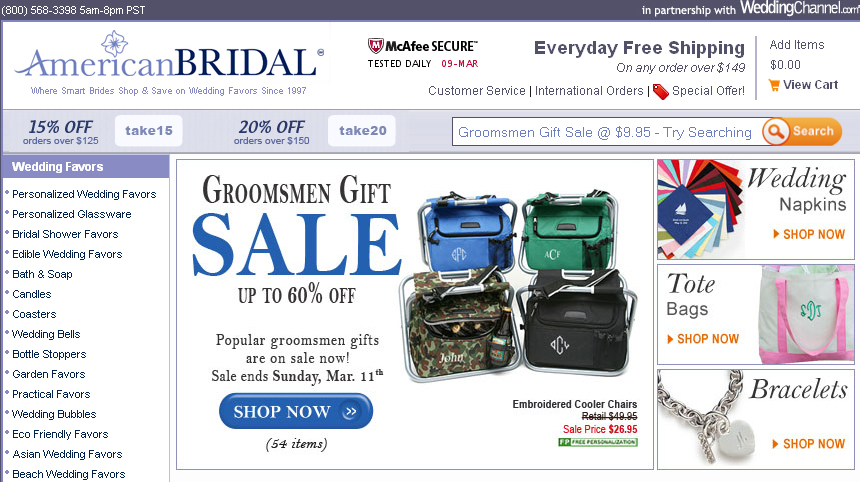
Increasing the size of the search box, or testing for optimum placement, are tips we’ve talked about in the past. In this newsletter, we’d like to share a new tip, which was suggested by one of our customers, American Bridal. In a bid to increase site search usage by their visitors, the company came up with the idea for a “floating search box,” which floats or hovers over the content even as the site visitor scrolls down a webpage. This means the search box is always visible and available. American Bridal generously shared this great idea with us.

You can see how the floating search box works on American Bridal’s website. When visitors arrive on the homepage, they see the search box near the top of the screen:

Search Box Top of Screen

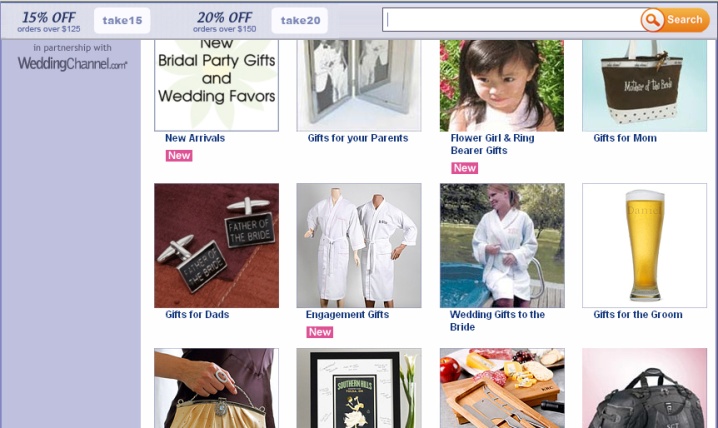
As shoppers click through to different pages and scroll down, the search box remains at the top of the page:

Search Box still There

American Bridal’s search box toolbar also includes codes for order discounts, giving the company an additional way to promote special deals and increase conversions.

Test the floating search box on your own site, and see if it helps your visitors take advantage of site search more often.

Read More

Got “no results”? Give customers an alternative

Posted by Shaun RyanMarch 14, 2012Newsletter, Site Search

Got “no results”? Give customers an alternative

When someone searches your site only to get a “no results” page, their visit will likely come to an end – whether you’re an e-commerce site, publisher, or otherwise. When you don’t give visitors other options, they’re likely to give up on the search and leave. Here are some tips for avoiding “no results” pages and how to offer alternate suggestions for visitors.

Reduce the number of “no results” pages:

  • Use Auto Complete to offer suggested search terms as soon as visitors start typing in the search box. The suggested search terms will always deliver results.
  • Pull reports on search terms that have no results. Often “no results” pages occur because your visitors are using different language than you use on your site – for instance, alternate spellings, or synonyms for product names. You can fix this by incorporating the alternate spelling or language into your search. Reports on “no results” search terms can also tell you about products or information that your visitors expect you to have, but that you don’t carry. You can use this information to help expand your offerings.

Offer more options on “no results” pages:

  • Show spelling suggestions using the “Did you mean …” phrase. You can pull these suggestions from the language you use on your website.
  • Show popular searches  and popular products
  • Display keyword-specific banners. For example, if a visitor searches for a product that you no longer stock, then a banner may be a good way of saying, “We no longer carry this product – but here are some alternatives.”
  • Display your phone number and invite the customer to call you, or ask you questions via live chat.
Read More

Posts pagination

< 1 … 27 28 29 30 31 32 33 … 64 >

Stay up to date with SLI

Featured Posts

  • Maximize Revenue with Enhanced Product Impact Testing
  • Top Five Ways to Prepare for Peak Season
  • Facets, Facets, Who’s Got the Facets?
  • Personalization: It’s Kind of a Big Deal
  • M is the New E: Mobile Commerce Trends and Predictions

Categories

About SLI Systems

  • What We Do
  • Who We Are
  • Why SLI

Learn

  • Webinars
  • News Room
  • Events

Connect

© Copyright SLI Systems, 2018. All Rights Reserved | US: (866) 240-2812 | Legal