





In an ideal world visitors will come to your website, find what they want and make a purchase. In the real world only a small portion of users will follow this pattern. Many will get interrupted, distracted, or need more time to make a decision for whatever reason. The search history feature is a simple way to allow users to return to their previous session – and the items they were interested in.
An online storefront needs to make it easier for visitors to get directly to the products or information they want in order to improve the chances they’ll make a purchase and increase their engagement with your brand. Enhancing your site search facilitates this no-hassle experience, and there are many ways to do this – for instance, using Rich Auto Complete, offering related search suggestions, and adding refinements. Displaying a search history is another way to improve your site’s usability and drive sales.
As visitors are searching, you can record their queries and make it easy for them to perform these searches again when they come back to the site without having to re-enter keywords, or even remember what they searched for. Displaying the search history in a clearly labeled “Recent Searches” box can serve as a reminder of their previous session and give customers access to the items they’re interested in with just a click or two. You can add the search history list to your search results pages, as well as product pages and your home page, so that visitors can access this list from anywhere on your site.
Here’s how the search history works one of our customers, FTD.com. If a shopper searches for “yellow roses,” then “chrysanthemums,” these search terms will appear in the Search History list at the top of the search refinement bar at left, even after they leave the site and then come back:
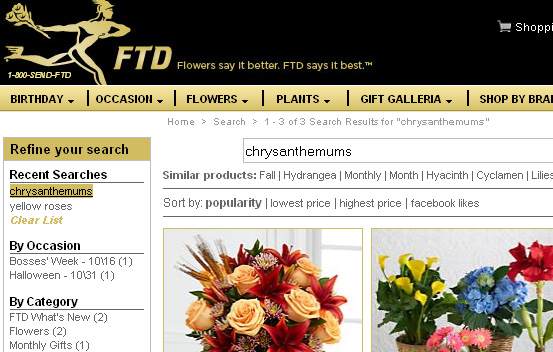
A nice feature to offer with search history is the option to “clear list,” as you can see in the FTD.com example above. Similarly, you can also allow visitors to select which terms to delete. Visitors may decide the list is out of date and they may want to delete it; or, if it’s a shared computer, they may not want someone in the same household to know what they’re buying for a birthday gift.
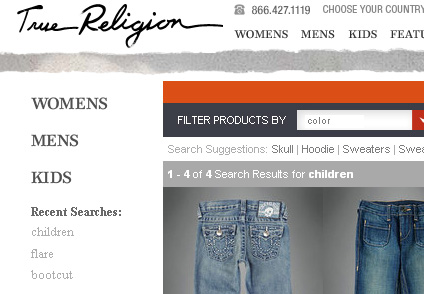
Like FTD.com, the website for True Religion jeans places the search history at top left, just above the list of refinement options:
Search history is yet another tool for making your site a little easier to use and a little easier to buy from. If you’d like to add search history to your site, we can help – contact your SLI customer success manager.
