SLI home
User login

A BLOG FOR E-COMMERCE LEADERS

  • Blog
  • Resources
  • Webinars
  • Customer Experience Scorecard

SLI Blog

Posts in Color Category

Refining Your Site Navigation (Part 2)

Posted by Lauri LarjoJanuary 13, 2016Color, eCommerce, Merchandising, Navigation Tips, Refinements, SEO, User Experience

As we discussed last week, the purpose of refinements is to allow shoppers to find what they are looking for more quickly. By indicating specific characteristics to narrow down the number of options shown in a category, visitors don’t have to scroll through pages of products to find the right one.

There are some simple ways you can deliver an exceptional shopping experience through your refinements.

SLI Color PaletteConsider a Color Palette

Color palettes provide a visually appealing way to show color options for a particular product. Plus, it takes the guess work out of identifying colors with names like vermilion (a reddish orange) or verdigris (a yellowish green). Color palettes are often displayed on the left column with other refinements.

Show Products in the Right Color

Display products in the color shoppers requested. For example, if the default image for a shirt is red, but it is also offered in blue, show the blue shirt when shoppers refine the category to blue.

If your product is available in several colors, let visitors see the color options from the navigation page. One effective way of doing this is to allow visitors to hover over the color palettes directly under the picture of the product. The color of the product changes, while other products on the page remain unchanged.

Use Images

The human brain processes images faster than text. Consider using images to signal certain refinements, such as apparel type (dresses, shirts, pants), brands, ratings, colors and shapes. Of course, images won’t work for some refinements, so use your judgment. Make sure the images you use are clear and simple, so your customers won’t be left guessing.

SLI Navigational ImagesUse Easy-to-understand Navigational Images

If you use navigational images to identify subcategories, make sure they are easy to understand. You want to make sure shoppers don’t accidentally confuse the subcategory images for the product selection.

Provide the following visual cues:

  • Show products as well as subcategories
  • Include the number of results for each subcategory
  • Label the subcategory images clearly
  • Distinguish between the layout of your products and subcategories

Offer Multiple Ways to Unselect Refinements

Let visitors easily change and remove refinements. Customers may want to navigate to the top or up one or several levels within a category. Use a Show All link or a breadcrumb trail to enable a quick link back to a category page or higher navigation levels. Breadcrumb trails help visitors see
 exactly where they are on the site and what refinements have been used.

Another best practice is to use an X or checkmark beside the selected refinements. This allows visitors to easily remove a refinement selection without deleting all the selected refinements and gives shoppers the flexibility they need to find the item they’re looking for. A Clear All option offers a quick “back-to-the-top” navigation alternative.

For more tips on how to improve your site navigation, download our Big Book of Navigation Tips.

Help interrupted users return to their previous session with Search History

Posted by Shaun RyanOctober 6, 2011Color, Newsletter, Refinements, Related Search, Rich Auto Complete, Site Search

In an ideal world visitors will come to your website, find what they want and make a purchase. In the real world only a small portion of users will follow this pattern. Many will get interrupted, distracted, or need more time to make a decision for whatever reason. The search history feature is a simple way to allow users to return to their previous session – and the items they were interested in.

An online storefront needs to make it easier for visitors to get directly to the products or information they want in order to improve the chances they’ll make a purchase and increase their engagement with your brand. Enhancing your site search facilitates this no-hassle experience, and there are many ways to do this – for instance, using Rich Auto Complete, offering related search suggestions, and adding refinements. Displaying a search history is another way to improve your site’s usability and drive sales.

As visitors are searching, you can record their queries and make it easy for them to perform these searches again when they come back to the site without having to re-enter keywords, or even remember what they searched for. Displaying the search history in a clearly labeled “Recent Searches” box can serve as a reminder of their previous session and give customers access to the items they’re interested in with just a click or two. You can add the search history list to your search results pages, as well as product pages and your home page, so that visitors can access this list from anywhere on your site.

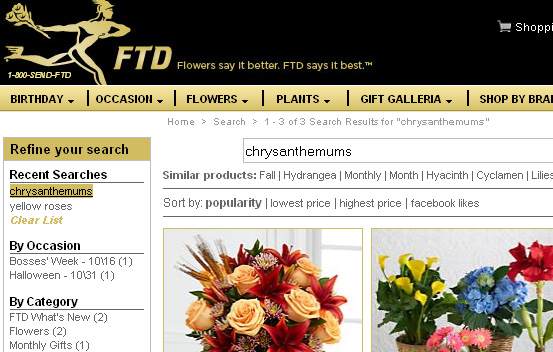
Here’s how the search history works one of our customers, FTD.com. If a shopper searches for “yellow roses,” then “chrysanthemums,” these search terms will appear in the Search History list at the top of the search refinement bar at left, even after they leave the site and then come back:

FTD


A nice feature to offer with search history is the option to “clear list,” as you can see in the FTD.com example above. Similarly, you can also allow visitors to select which terms to delete. Visitors may decide the list is out of date and they may want to delete it; or, if it’s a shared computer, they may not want someone in the same household to know what they’re buying for a birthday gift.

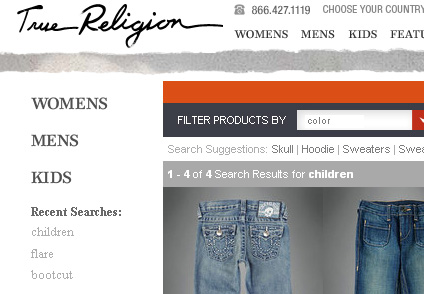
Like FTD.com, the website for True Religion jeans places the search history at top left, just above the list of refinement options:

True Religion

Search history is yet another tool for making your site a little easier to use and a little easier to buy from. If you’d like to add search history to your site, we can help – contact your SLI customer success manager.

Add Some Color to Your Web Site – and the Site Search

Posted by Shaun RyanJune 8, 2009Color, Newsletter, Site Search2 comments

Over time companies have come to recognize that populating a web site with lots of images significantly improves the user experience. This is especially true for e-commerce sites, where people shopping online always like to see a picture of what they’re going to buy. For many sites it’s even more compelling when shoppers can view items in all the different color options available. Well, guess what? Adding the ability to refine results by color to your site search can also have a positive impact.

Let’s look at our customer Jelly Belly. If you search their site for a particular flavor or mix of flavors of jelly beans, you will see an option to refine by one or more colors – so you see only results in the particular color(s) you like (as shown below).

Jason Marrone, ecommerce marketing manager for Jelly Belly, mentioned in the recent Ecommerce Podcast interview that they have many visitors who are choosing candy to match a color theme for functions like bridal or baby showers, and graduation, birthday and other types of parties. As such, they appreciate being able to refine the results by particular colors – such as seeing jelly beans in the school colors of the recent high school graduate.

Google recently added a color refinement option to its image search, allowing you to search for particular images (e.g. “rose bush”) in a particular color, like pink. (When Google adds a new feature, it’s generally a good idea others can borrow – although you should still test and measure with your visitors to make sure.)

Refining search results by color can get a little tricky if you have products that come in several colors – especially if you don’t have a photo for every color of every product. Of course one solution is to take an image of every product in every color available and show the appropriate product when a color refinement is applied. This can be very expensive, time consuming and often just not practical. A common solution is to take one photo of each product and show swatches of the color or material that the product can come in.

As you can see in the example below, Dover Saddlery, another SLI customer, approaches this in a useful way, by showing available colors for each item below each site search result. When you mouse over a color a larger image of the color pops up along with its name. If you click on the result, you’re then able to see the item in the different colors available.

We’re starting to do more work with customers in this area and would be happy to give you some guidance on how best to incorporate color refinements into your site search. It could be another way to increase conversions and improve the user experience on your site. If you would like more information, feel free to contact us, or take a look at our new video with some quick tips on adding color refinements to site search.

Stay up to date with SLI

Featured Posts

  • Maximize Revenue with Enhanced Product Impact Testing
  • Top Five Ways to Prepare for Peak Season
  • Facets, Facets, Who’s Got the Facets?
  • Personalization: It’s Kind of a Big Deal
  • M is the New E: Mobile Commerce Trends and Predictions

Categories

About SLI Systems

  • What We Do
  • Who We Are
  • Why SLI

Learn

  • Webinars
  • News Room
  • Events

Connect

© Copyright SLI Systems, 2018. All Rights Reserved | US: (866) 240-2812 | Legal